How To Add A Video To Your Sub-Pages , Video Index & Slider
OVERVIEW
How To Add A Background Image or Video
STEP-BY-STEP
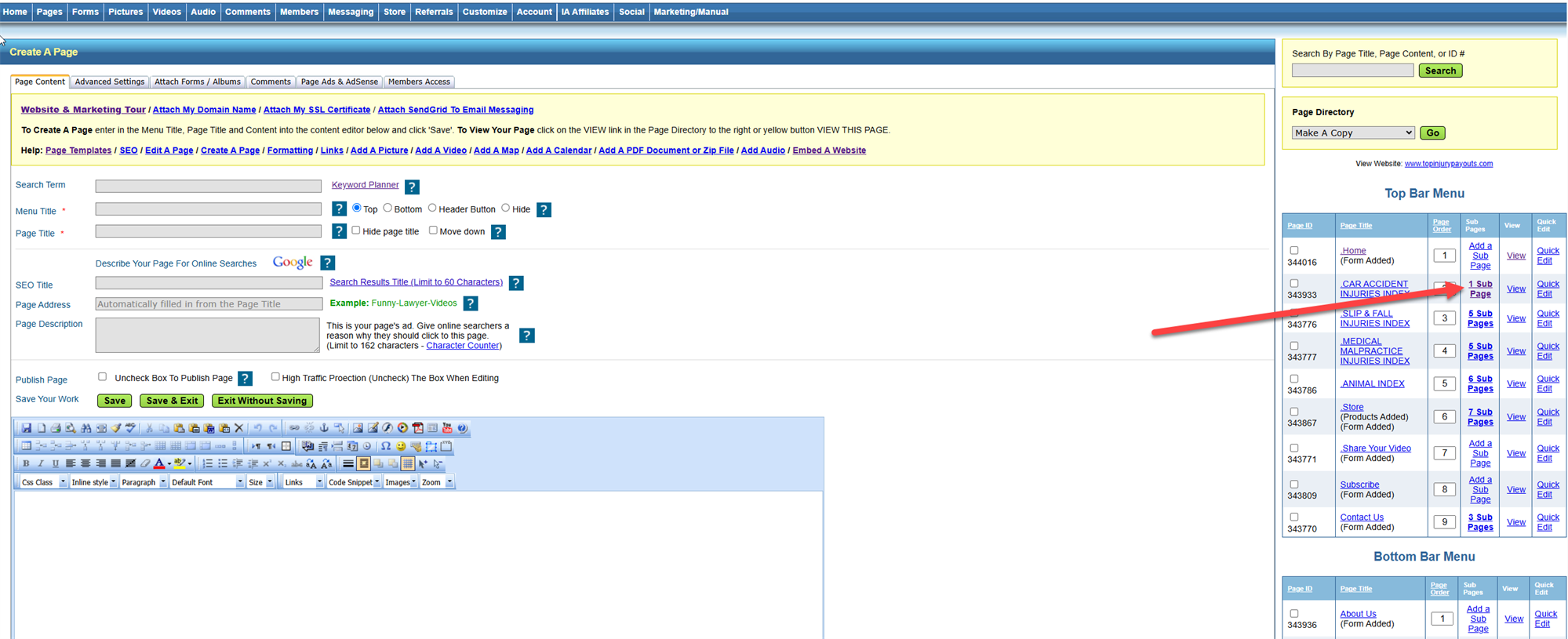
Log into your editor and click on the Sub Pages of your Video Index page.
How To Make A Copy Of The Video Template
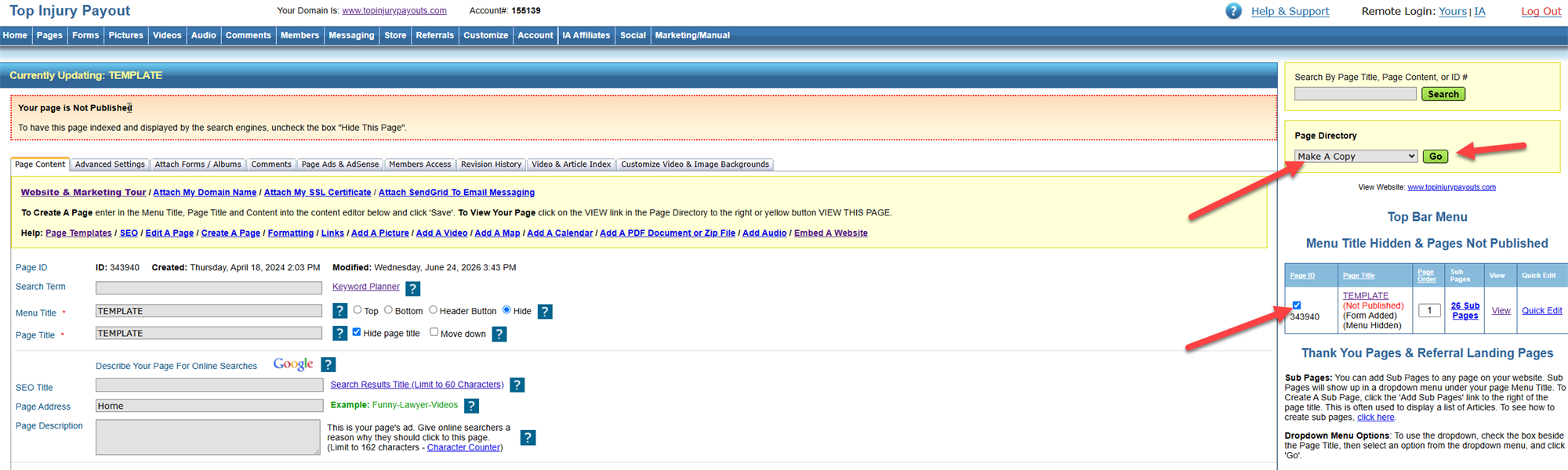
Click on the TEMPLATE page, select MAKE A COPY, click GO.
How To Copy A YouTube Video To Youe Video Page
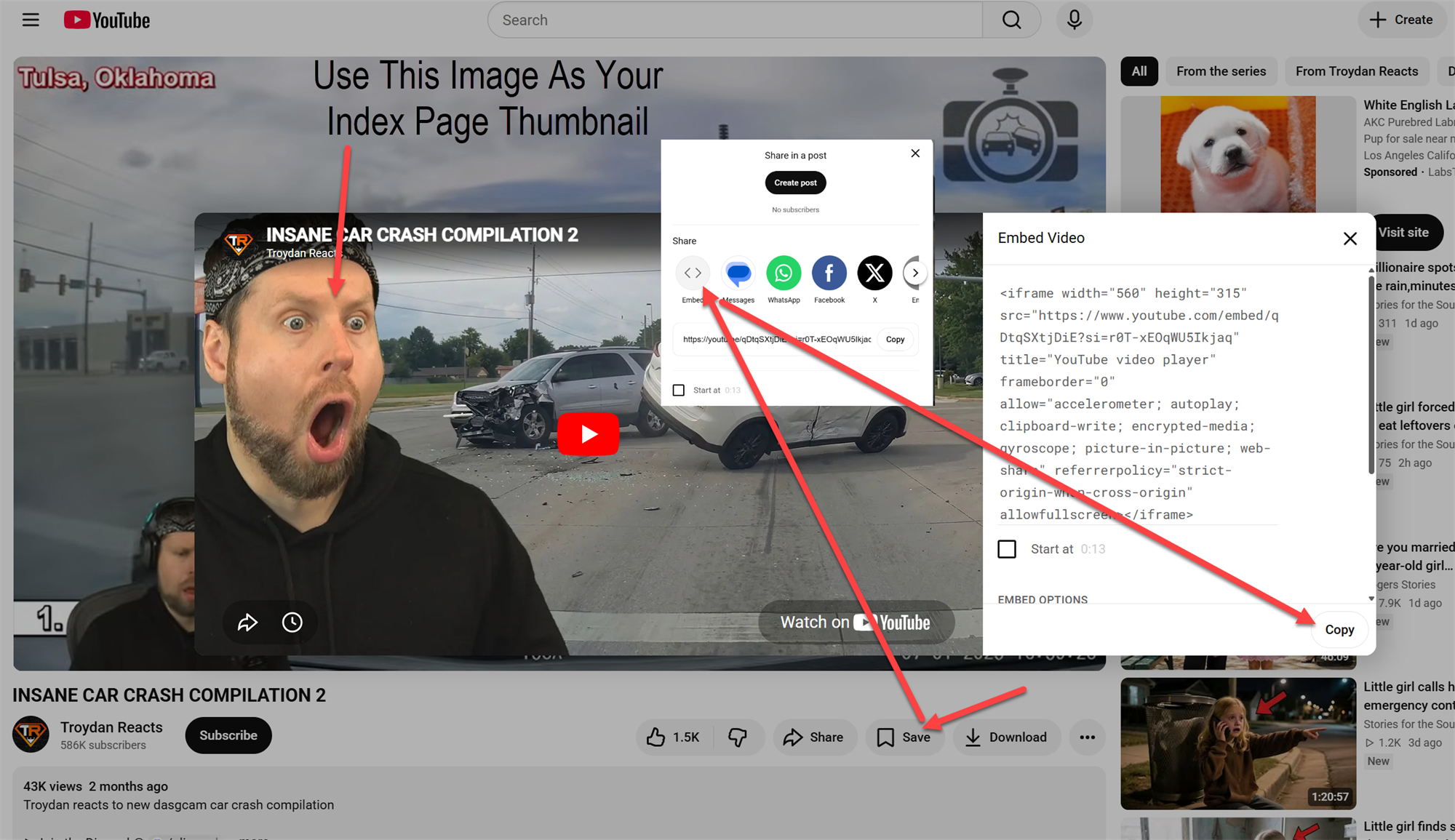
Go to YouTube (Use Videos, Not Shorts) click SHARE, EMBED, then COPY Code.
- Screenshot and use the Thumbnail Image that comes up when you get the video embed code for your Page Index Thumbnail
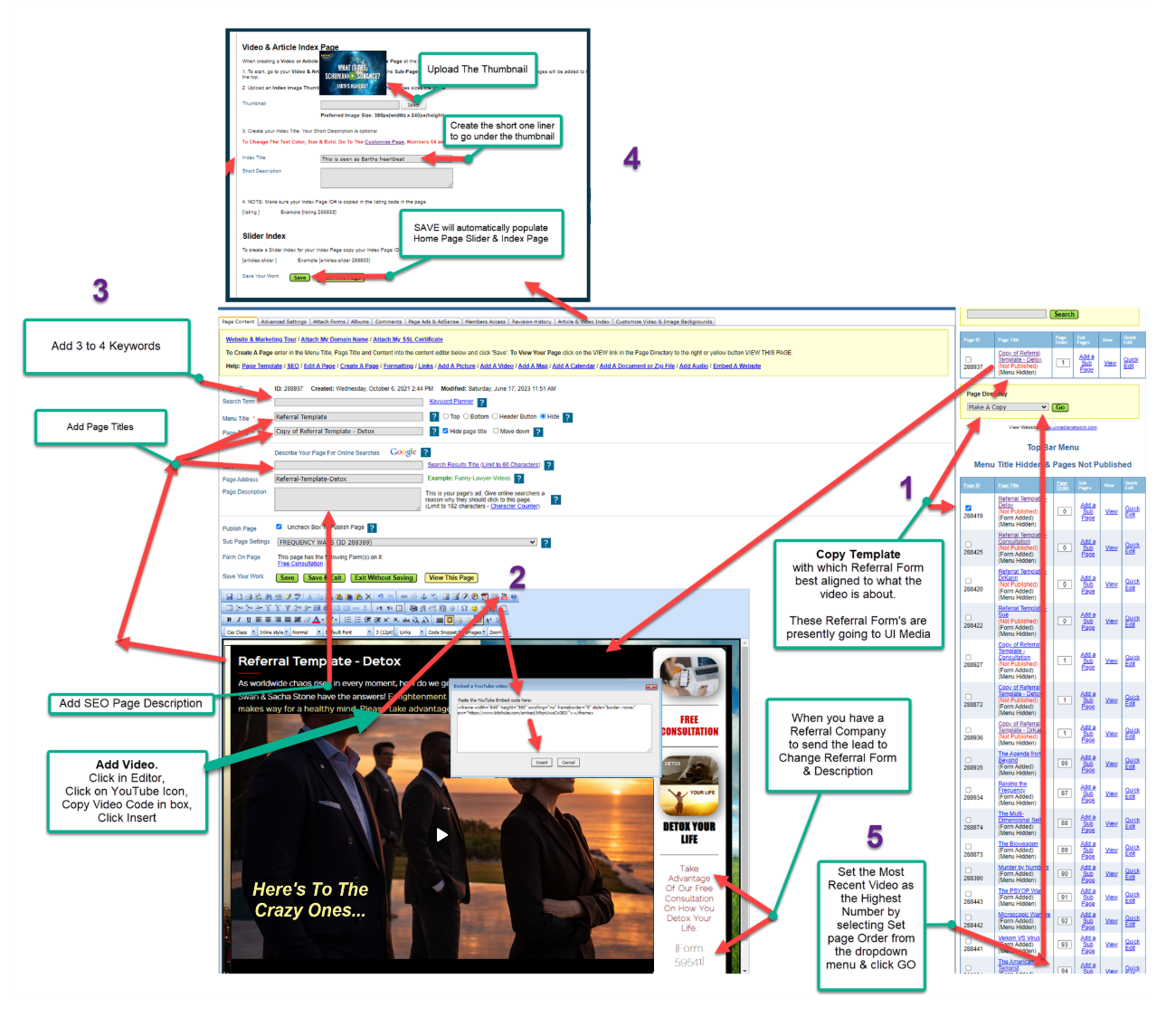
Add The New Video & Text To The Copy Of Your Video Template
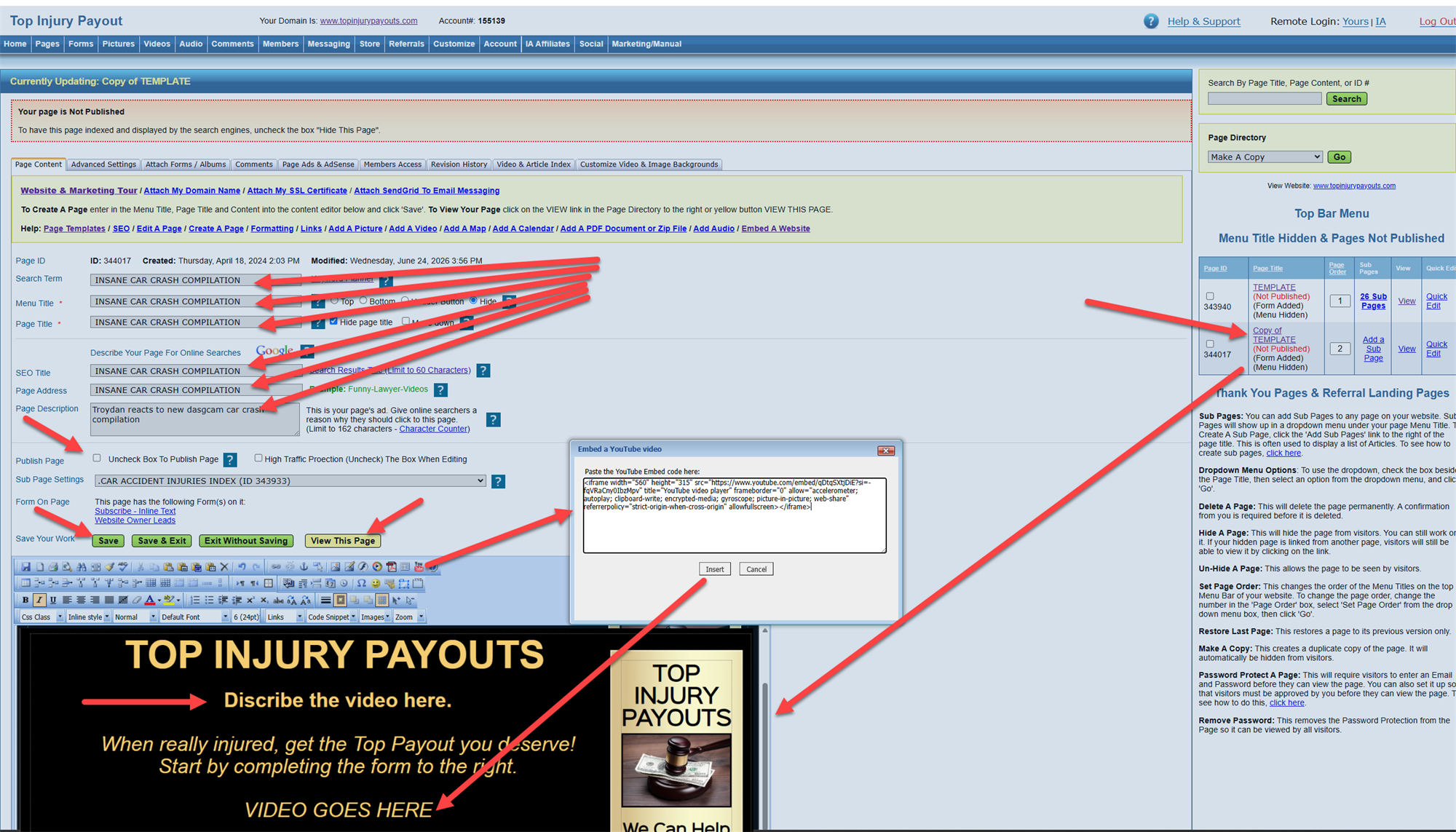
1) Click on the Page Title on the right to open a copy of the template in your editor.
2) To upload your YouTube video to your page, highlight the "Video Goes Here" text, click the Red Video icon, paste your YouTube video code into the popup box, then click the Insert button.
3) Save and view your page.
4) Update the menu titles to reflect your video topic.
5) Uncheck the Publish Page box to publish your page.
6) Save and view your page.
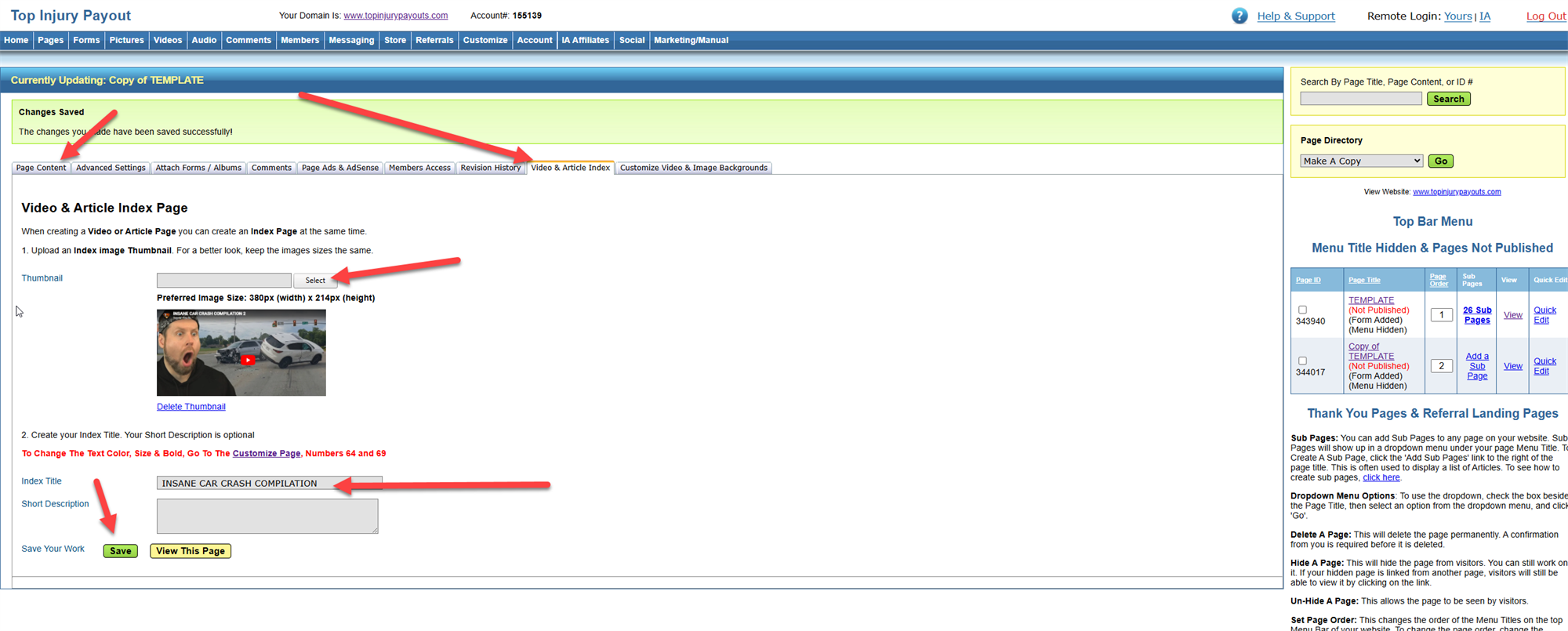
Add Your Thumbnail Video Picture to your Video Index Page
1) Click on the tab entitled "VIDEO & ARTICLE INDEX."
2) Upload the image you took a screenshot of when you were getting the video code.
3) Enter an Index Title and click the SAVE button.
4) To return to your Video Page, click on the tab entitled "Page Content."